


Advanced Web Tools
Organization
Description
We are the team behind the AWT Framework, AWT CMS, and the growing AWT ecosystem. Our work focuses on modular architecture, developer-friendly tools, and solutions that make building and maintaining complex web applications easier.
We believe software should be flexible, scalable, and built to last. Through our packages, integrations, and development tools, we aim to give developers greater control over their projects without unnecessary complexity.
What We Build
- Framework Components — Core functionality and development utilities.
- CMS Extensions — Tools for content management, administration, and customization.
- Developer Tools — Utilities that simplify development and deployment.
- Integrations — Packages that connect and extend the AWT ecosystem.
Members

Packages
-
Dashboard
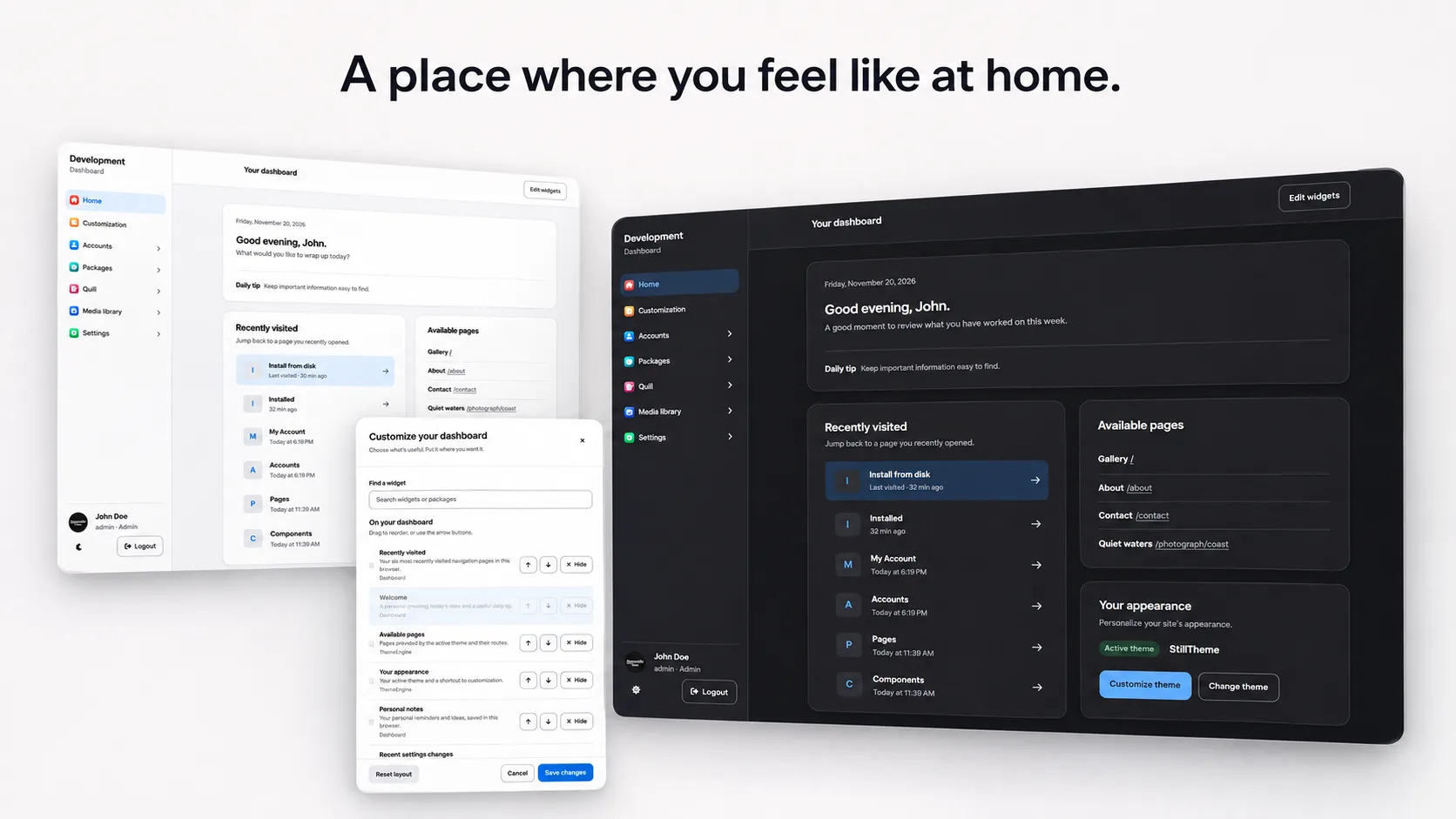
Your workspace. Your priorities. Your dashboard. Dashboard is a personal workspace for Advanced Web Tools that brings your everyday website tools together. Keep useful information in view, capture ideas, and return to recent pages from one clear starting point. Built for website administrators and content teams, Dashboard lets each user organize their workspace around the way they work. Put your priorities first Choose the widgets you need, arrange them in your preferred order, and hide the rest. Your layout is saved for your account, giving every team member their own familiar starting point. Search available widgets, review layout changes before saving, or restore the default arrangement whenever you want a fresh start. Everyday essentials, ready to use Personal welcome: Begin your session with a greeting, the current date, and a daily tip. Personal notes: Capture reminders, ideas, and next steps with automatic saving in your current browser. Recently visited pages: Quickly return to pages you recently opened and pick up where you left off. Notes and recent page history stay in the browser where you use them; they do not sync across devices. Pin your most important pages. Work comfortably on any screen Dashboard adapts to desktop, tablet, and mobile screens. Choose a light or dark theme, move widgets by dragging or using simple controls, and keep your workspace organized as your needs change. Grow with your website Compatible AWT packages can add more widgets to your workspace. Navigation and available widgets can reflect each user’s access level, keeping the experience relevant to their role.
Downloads: 35
-
MediaLibrary
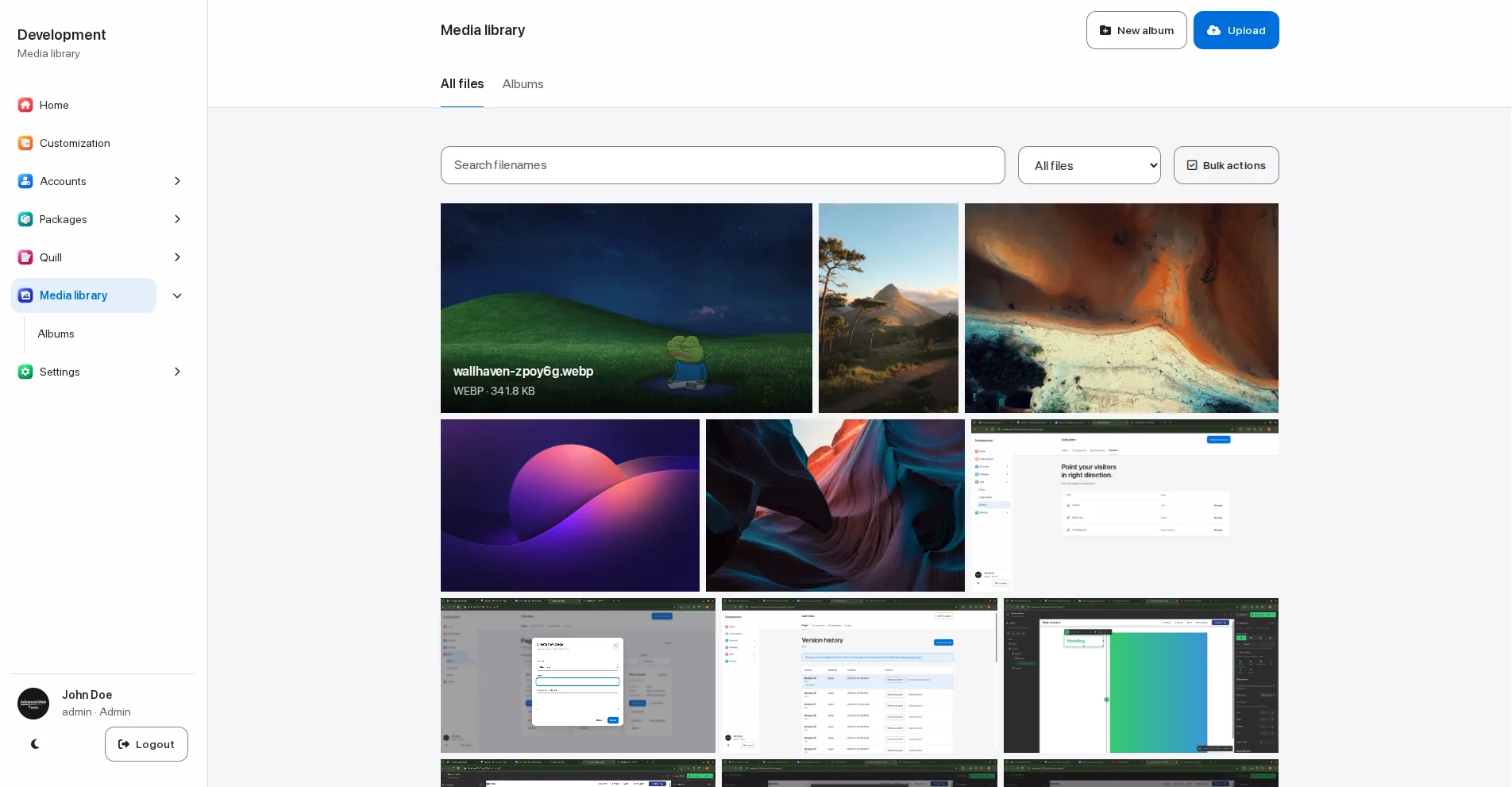
Your media. Organized, accessible and ready to use. Upload, explore and manage your website’s images, videos, audio and documents from one AWT workspace. MediaLibrary brings your content into the Dashboard with a visual library, flexible albums and tools for working with multiple files at once. Find the asset you need, inspect its details and copy its link without leaving your workspace. Built for Advanced Web Tools, it follows the Dashboard’s visual style and supports light and dark themes. Features Feature What you get: One library for your content Keep images, videos, audio files and documents together, with search and file-type filters. Visual browsing Images fit together in a compact gallery that adapts to their proportions and your screen. Drag-and-drop uploads Drop multiple files into the upload dialog or click the drop area to open your file picker. Upload progress and retries Follow upload progress, review individual errors and retry unsuccessful files. Rich previews View images, play video and audio, and preview supported documents in a focused popup. File details at a glance See the name, upload date, copyable file link and uploader, with extended metadata tucked into a collapsible section. Flexible albums Group files by project, campaign or topic. The same file can belong to multiple albums. Custom album covers Choose an image from the album or let MediaLibrary use the latest file automatically. Album management Search all albums, including empty ones, edit a single album or delete several together. Bulk actions Select files to add or move to an album, create an album from your selection, remove memberships or delete files. Infinite scrolling Browse the library, albums and selection dialogs with content loaded as you scroll. Optional image optimization Convert supported static images to WebP in the browser before uploading. Optional metadata removal Remove image metadata before upload, independently of image optimization. Dashboard integration Familiar dialogs, light and dark themes, and Font Awesome action icons. Upload once. Use across albums. Add files to the library or upload directly into an album. Search existing files by name and choose them visually from a thumbnail grid when building a collection. Organizing files into albums keeps the original content in one place. Removing a file from an album preserves it in the library; moving it to another album preserves its memberships in other collections. Deleting an album also keeps its files available in the library. Explore your content up close Open any file to see its preview on the left and its details on the right. Images stay in view while you scroll through the information panel. Copy the file link with a single icon button, check who uploaded it and expand Extended metadata when you need more detail. Uploader information includes a profile picture when available, their name and username. Rename, download or delete a file from the preview. In an album, you can also move it to another album or remove it from the current collection. Make albums easy to recognize Choose a cover image to make each album easy to recognize. Empty albums stay out of the main gallery until they contain files. Open Manage albums to find every album, including empty ones. Select one to reveal Edit and Delete, or select several to delete them together. Create new albums from the same dialog. Within an album, Manage album opens its editor directly. Change its name or cover image, then use Back to explore to return to the full album list. Get more done with bulk actions Turn on Bulk actions to reveal selection controls. Selected files have a clear checkmark and highlighted state, and your selection stays with you as you search and load more content. Work with up to 500 files per operation. Prepare images before they reach your server Choose how uploads are processed using two independent settings in the Media library category: Setting Behavior Image optimization Converts supported static JPEG, PNG, WebP and AVIF images to WebP, with a maximum long edge of 2560 pixels. Remove metadata before upload Removes source image metadata before the file is sent to storage. Both settings are off by default, so original files are uploaded unchanged until you enable processing. Image preparation happens in the browser. Animated GIF, PNG and WebP files retain their animation and format; audio, video and documents are uploaded without image processing. Supported processing depends on the browser. Files that cannot undergo the requested metadata removal show an individual error so you can review them before retrying. Supported content Content Formats Images: JPEG, PNG, GIF, WebP, AVIF Video: MP4, WebM, MOV Audio: MP3, WAV, OGG, M4A Documents: PDF, TXT, CSV, DOC, DOCX, XLS, XLSX, PPT, PPTX, ODT, ODS, ODP Images, video, audio, PDF, TXT and CSV have previews. Playback and embedded PDF support depend on your browser and available codecs. Other document formats are available to download.
Downloads: 8
-
PackageManager
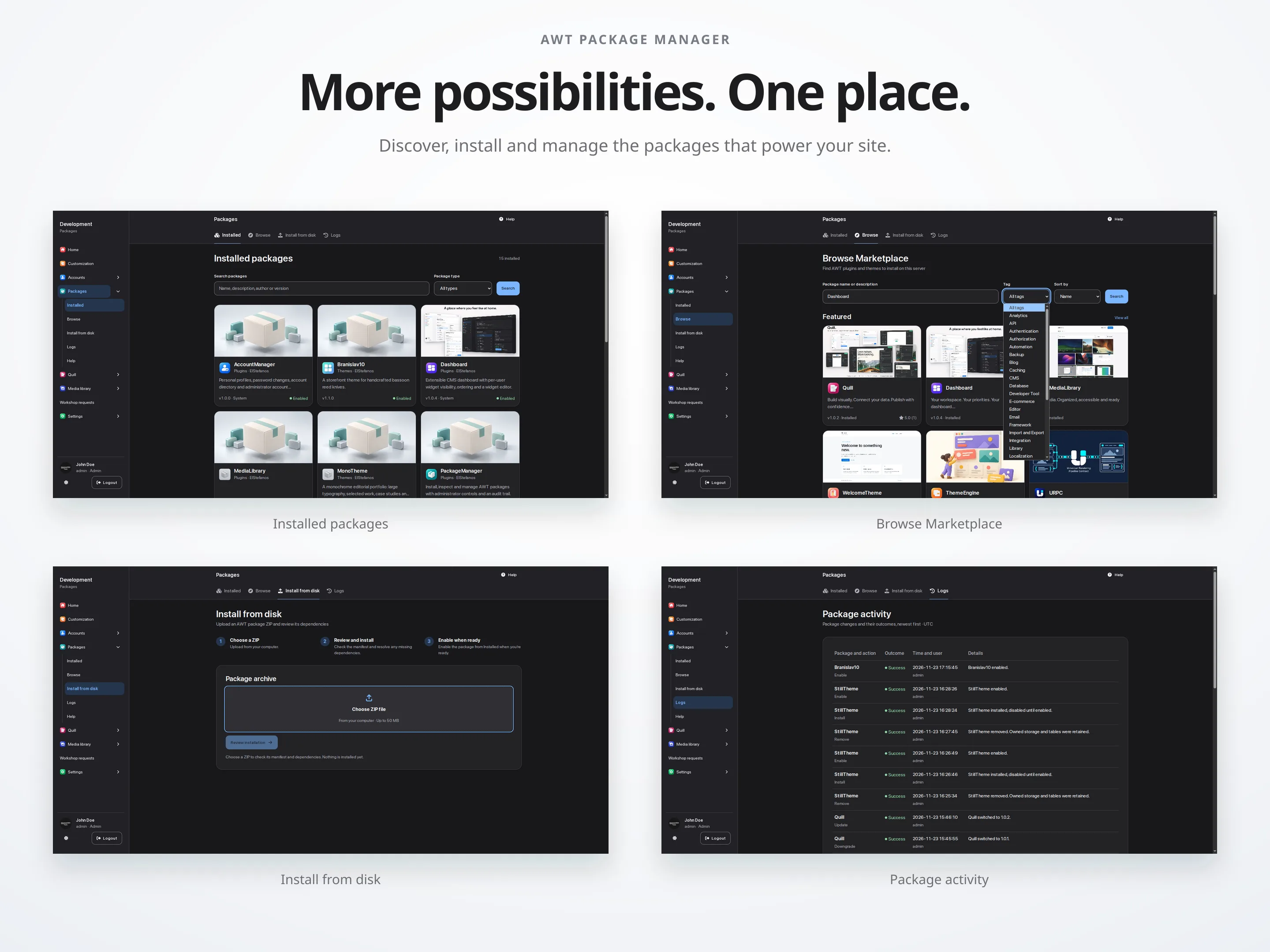
Review first. Install with confidence. Adding a package starts with a clear review. Choose a ZIP from a publisher you trust, check the package details and see whether anything else is needed before you confirm installation. When required packages are missing, PackageManager can prepare them from the sources supplied by the publisher. You can review those sources and resolve compatibility issues before continuing. New packages start disabled, so you decide when they become part of your site. Stay in control as your site grows Enable the tools you need, disable those you’re no longer using and remove packages when it’s time to move on. Built-in checks help prevent changes that would affect other packages, while essential system packages remain protected. Keep every change in view See who performed a package action, when it happened and how it turned out. The activity log gives administrators a shared history to refer to, while the dashboard’s recent-activity widget keeps the latest changes close at hand.
Downloads: 16
-
Quill
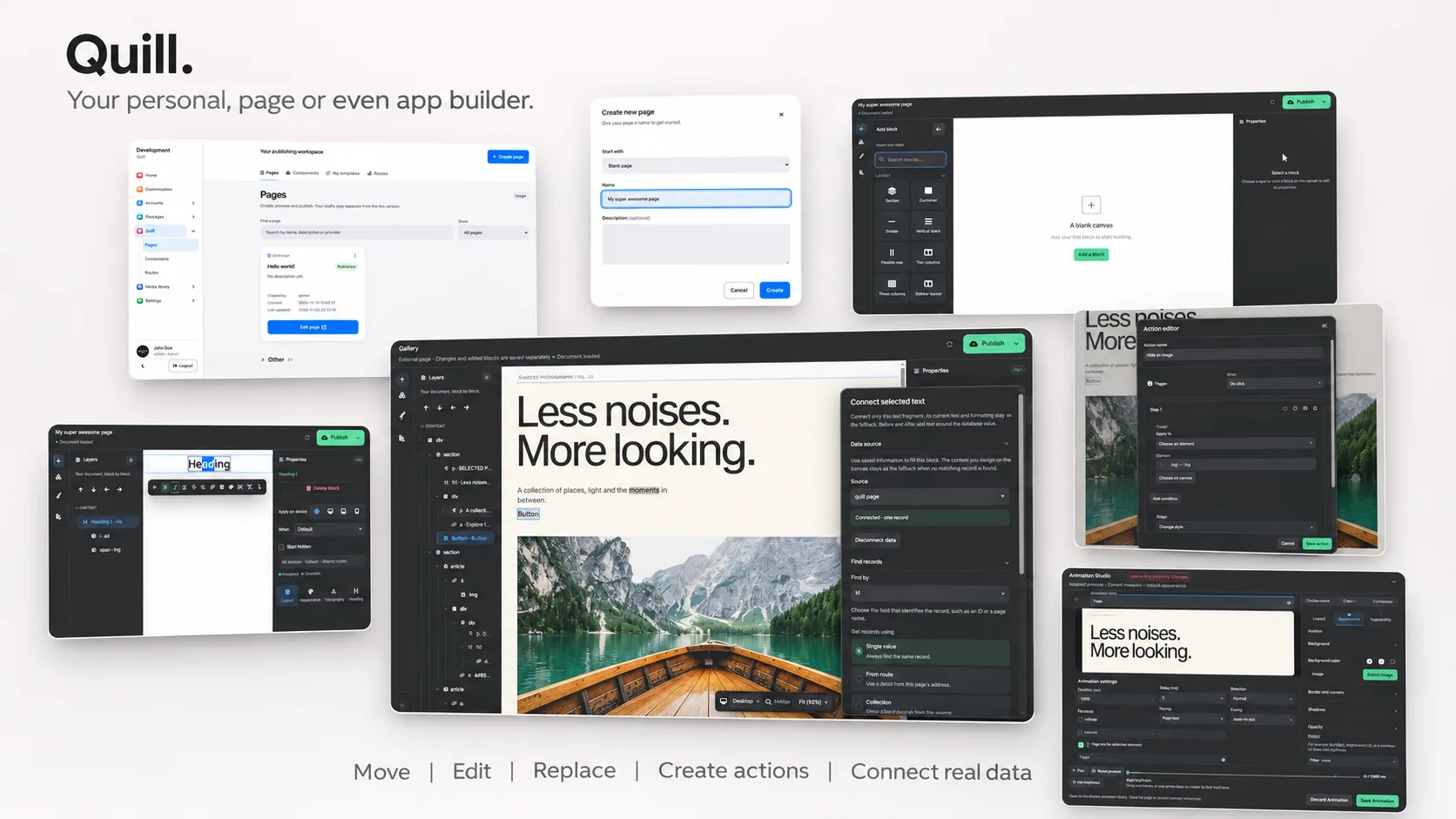
Build visually. Connect your data. Publish with confidence. Quill brings visual page building, reusable components and dynamic content to AWT. Create polished, responsive pages in one workspace, with precise design controls and a clear draft-to-publish workflow. Design without friction Visual editing: Live canvas, nested layers, drag-and-drop, contextual insertion and floating toolbars. Responsive layouts: Flexbox, grids, layout presets, device previews, zoom and fit-to-screen. Precise controls: Linked spacing and dimensions, visual corner radius, edge pinning, transforms and a 3×3 transform-origin selector. Complete styling: Colors, images, gradients, backgrounds, borders, layered shadows, filters and transitions. Responsive states: Device-specific styles, hover/focus states, explicit overrides and contextual resets. Rich content: Inline text formatting, line breaks, links, images, lists, tables and searchable Font Awesome icons. Typography: Google Fonts search and previews, available weights, italics and system fonts. Build more. Repeat less. Shared components: Create, reuse and edit components centrally. Published updates reach referenced pages without republishing each page. Detach local instances when needed. Personal templates: Save reusable starting points for new pages. Animation Studio: Record property changes as keyframes in an isolated preview. Edit tracks, timing, easing and triggers; reuse animations from a shared library. Color palettes: Named local, global and provider palettes with solid colors, gradients, page defaults and quick exploration. Visual Action Builder: Connect events, conditions, targets and action steps without writing interaction code. Connect real content Database connections: Map records to text and attributes. Select a single record, match a route parameter or display a sorted, limited collection. Visual query builder: Combine nested AND/OR filters, comparisons and typed or route-based values. Flexible text: Combine fields such as first and last name, add before/after content and keep authored fallbacks. Page routes: Create and assign routes from the dashboard or editor. Stay in control Publishing: Separate drafts, public previews, revision snapshots, history and restore. Block version history: Browse saved block changes, see their authors and restore individual versions from the floating toolbar. Editing confidence: Grouped Undo/Redo, configurable keyboard shortcuts, block and style copy/paste, optional autosave and save-conflict protection. Personal workspace: Light/dark/system appearance, default device, save preferences and configurable autosave intervals. Organized dashboard: Search pages, components, templates and external resources; manage routes and versions. Built for the AWT ecosystem Media libraries: Register image and video providers, with shared pickers and direct URL fallback. Extensible by design: Register blocks, properties, controls, actions and external resources through Quill's extension APIs. External editing: Edit provider pages and components, including block additions and structural changes, while preserving the provider source. URPC rendering: Structured JSON documents, Quill ↔ URPC conversion and runtime document hooks. Editor-only tools stay out of published pages.
Rating: 5.0 Reviews: (1) Downloads: 18
-
QuillMediaBridge
Browse. Find. Select. Keep creating. Connect AWT Media Library to Quill and put your existing images, videos, and albums within reach of the editor’s media picker. Your collection, organized for editing Media Library gives you access to your complete collection and always appears first. Each album gets its own Media Library - Album Name provider, helping you focus on the assets for the page you are working on. Use the search field to find media by filename. Browse images in a gallery with two columns, where each preview keeps its natural proportions. Load more results when you want to explore further. What you get A universal media provider, plus a dedicated provider for every album. Search within the complete library or the selected album. Image previews with flexible heights and no cropping. Support for image and video selection in compatible Quill fields. Selection through Quill’s existing media controls. Filename-based initial alternative text when choosing an image. Start using it Install and enable the package together with Quill and Media Library. Open Quill’s media picker, choose a library, and select an asset to update the active field. Album additions, renames, and removals are reflected the next time Quill requests the provider list. Fits into your AWT installation This is a focused runtime integration: no separate dashboard, no additional routes, and no duplicate media storage. Browsing uses Media Library’s existing feed and access checks.
Downloads: 7
-
ThemeEngine
Give your AWT site a look that feels like yours. Explore installed themes, personalize their layouts, and preview your changes before choosing the design your visitors will see. ThemeEngine brings theme management into one familiar dashboard, with each theme's configuration ready whenever you need it. See your next design before you switch Browse visual theme cards, open a design that interests you, and explore its pages in a live preview. Review its author, version, compatibility, and dependencies alongside the design. Try desktop, tablet, and mobile preview sizes, or open a separate window for a larger view. You can explore an inactive theme while your site continues using its current theme. Make room for what matters Choose which headers, footers, and sidebars appear across a theme, then tailor individual pages where needed. Adjust the options the theme provides, such as text and colors, from straightforward settings forms. Each theme keeps its own saved configuration. Prepare a new look ahead of time and activate it when you are ready. Keep your favorite configurations Save presets of a theme's settings and layout, then return to them when you want. Applying a preset restores that theme's saved configuration without activating it. Clear unsaved-change messages put Save buttons within reach. Browser reminders help protect pending edits, and the Help tab explains common tasks with links to the relevant controls. A dashboard that feels familiar Responsive cards, readable forms, restrained icons, and light and dark appearance support keep the interface comfortable across screen sizes. Theme details and editing tabs stay together, so you always know which theme you are working on.
Downloads: 6