
Tag Media Clear filter
Trending packages
-
MediaLibrary
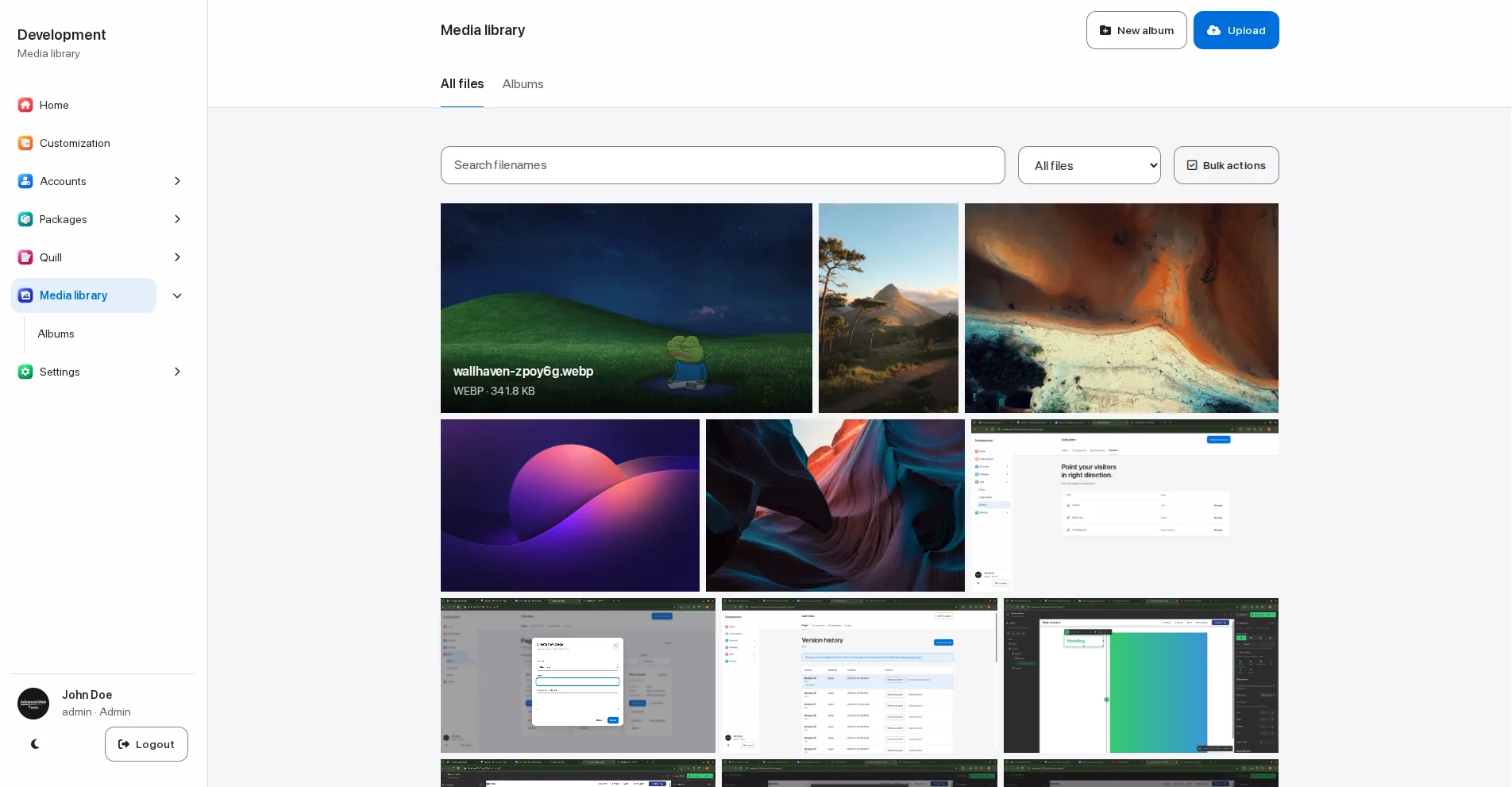
Your media. Organized, accessible and ready to use. Upload, explore and manage your website’s images, videos, audio and documents from one AWT workspace. MediaLibrary brings your content into the Dashboard with a visual library, flexible albums and tools for working with multiple files at once. Find the asset you need, inspect its details and copy its link without leaving your workspace. Built for Advanced Web Tools, it follows the Dashboard’s visual style and supports light and dark themes. Features Feature What you get: One library for your content Keep images, videos, audio files and documents together, with search and file-type filters. Visual browsing Images fit together in a compact gallery that adapts to their proportions and your screen. Drag-and-drop uploads Drop multiple files into the upload dialog or click the drop area to open your file picker. Upload progress and retries Follow upload progress, review individual errors and retry unsuccessful files. Rich previews View images, play video and audio, and preview supported documents in a focused popup. File details at a glance See the name, upload date, copyable file link and uploader, with extended metadata tucked into a collapsible section. Flexible albums Group files by project, campaign or topic. The same file can belong to multiple albums. Custom album covers Choose an image from the album or let MediaLibrary use the latest file automatically. Album management Search all albums, including empty ones, edit a single album or delete several together. Bulk actions Select files to add or move to an album, create an album from your selection, remove memberships or delete files. Infinite scrolling Browse the library, albums and selection dialogs with content loaded as you scroll. Optional image optimization Convert supported static images to WebP in the browser before uploading. Optional metadata removal Remove image metadata before upload, independently of image optimization. Dashboard integration Familiar dialogs, light and dark themes, and Font Awesome action icons. Upload once. Use across albums. Add files to the library or upload directly into an album. Search existing files by name and choose them visually from a thumbnail grid when building a collection. Organizing files into albums keeps the original content in one place. Removing a file from an album preserves it in the library; moving it to another album preserves its memberships in other collections. Deleting an album also keeps its files available in the library. Explore your content up close Open any file to see its preview on the left and its details on the right. Images stay in view while you scroll through the information panel. Copy the file link with a single icon button, check who uploaded it and expand Extended metadata when you need more detail. Uploader information includes a profile picture when available, their name and username. Rename, download or delete a file from the preview. In an album, you can also move it to another album or remove it from the current collection. Make albums easy to recognize Choose a cover image to make each album easy to recognize. Empty albums stay out of the main gallery until they contain files. Open Manage albums to find every album, including empty ones. Select one to reveal Edit and Delete, or select several to delete them together. Create new albums from the same dialog. Within an album, Manage album opens its editor directly. Change its name or cover image, then use Back to explore to return to the full album list. Get more done with bulk actions Turn on Bulk actions to reveal selection controls. Selected files have a clear checkmark and highlighted state, and your selection stays with you as you search and load more content. Work with up to 500 files per operation. Prepare images before they reach your server Choose how uploads are processed using two independent settings in the Media library category: Setting Behavior Image optimization Converts supported static JPEG, PNG, WebP and AVIF images to WebP, with a maximum long edge of 2560 pixels. Remove metadata before upload Removes source image metadata before the file is sent to storage. Both settings are off by default, so original files are uploaded unchanged until you enable processing. Image preparation happens in the browser. Animated GIF, PNG and WebP files retain their animation and format; audio, video and documents are uploaded without image processing. Supported processing depends on the browser. Files that cannot undergo the requested metadata removal show an individual error so you can review them before retrying. Supported content Content Formats Images: JPEG, PNG, GIF, WebP, AVIF Video: MP4, WebM, MOV Audio: MP3, WAV, OGG, M4A Documents: PDF, TXT, CSV, DOC, DOCX, XLS, XLSX, PPT, PPTX, ODT, ODS, ODP Images, video, audio, PDF, TXT and CSV have previews. Playback and embedded PDF support depend on your browser and available codecs. Other document formats are available to download.
Downloads: 8